■ Fitting Room (Preview & Purchase) Main Feature
|
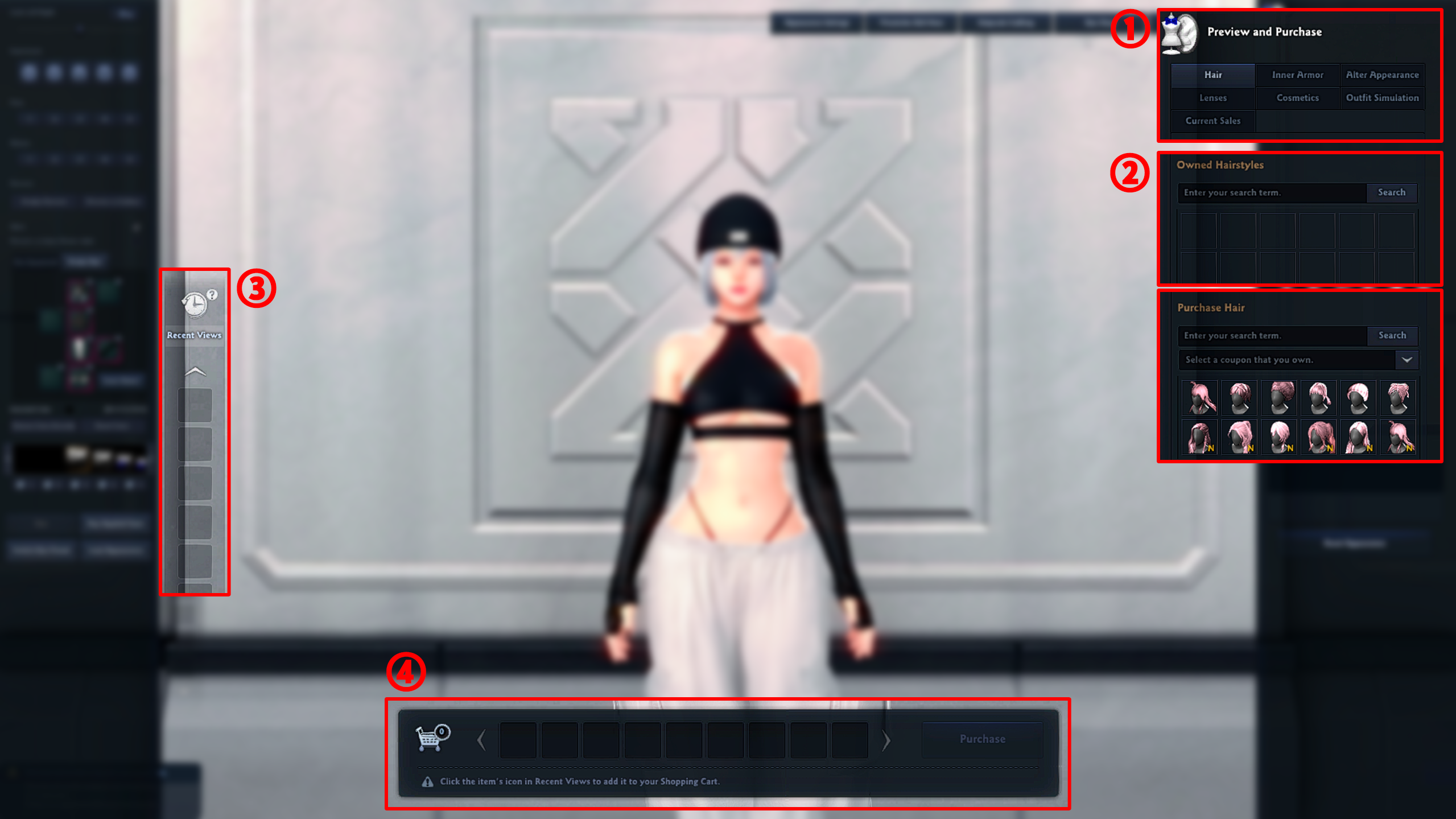
[1] Fitting Room Features
[2] Search Feature Search for Avatar Accessories you'd like to purchase, as well as which ones your character currently owns.
[3] Preview History See a list of Avatar Accessories your character has tried on, and select ones you'd like to move to your Shopping Cart.
[4] Shopping Cart Access your Shopping Cart via Recent Views, where you can click Purchase to proceed with the purchase. |
■ Purchasing Items
|
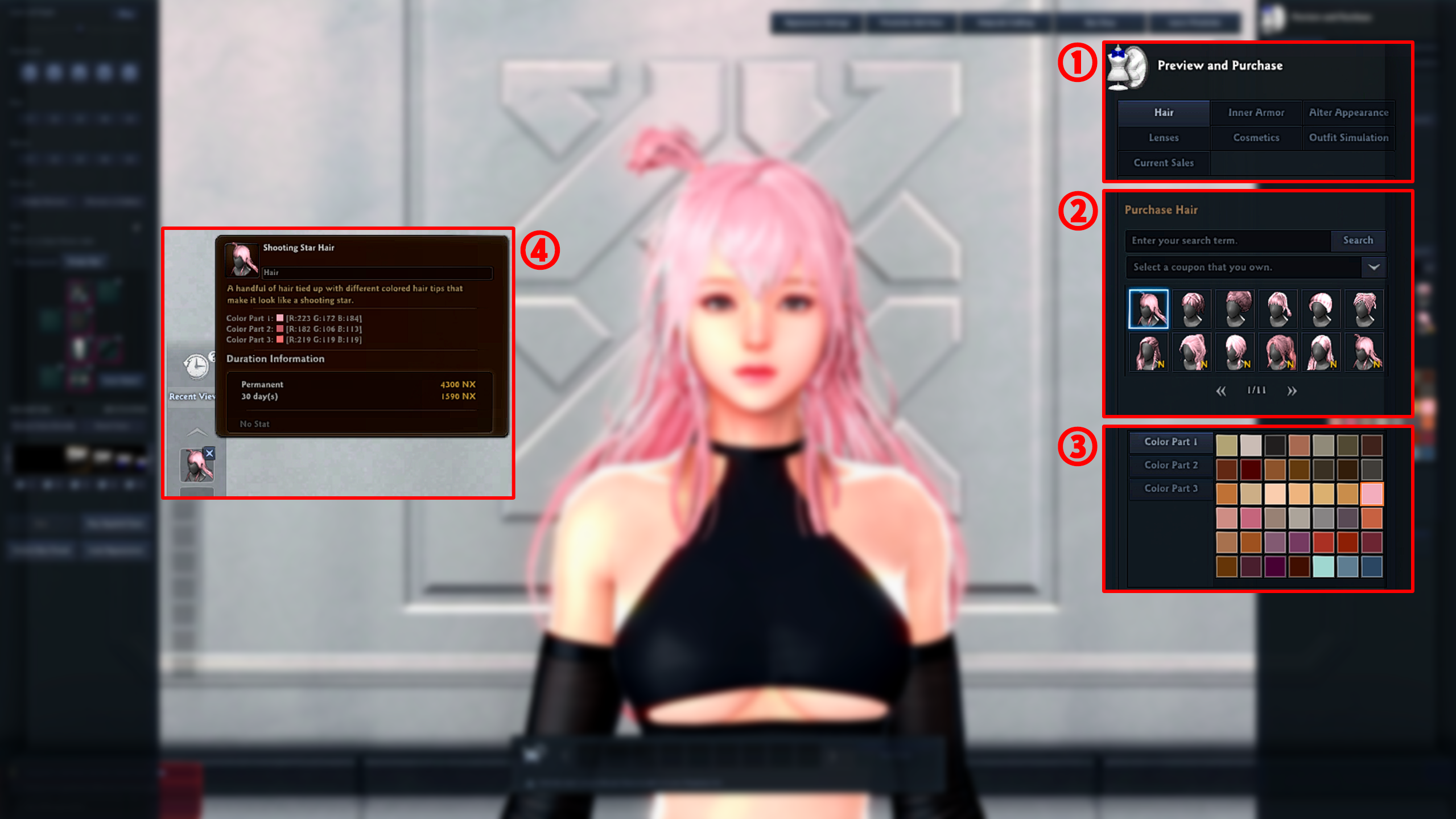
[1] Select the item category you wish to purchase from (aside from the Outfit Simulation category).
[2] Click the item to see your character with the item equipped. For example, if you tried on Neamhain's Long Curls, from the hair category, and then tried on Twin Braids, only Twin Braids would appear in the Recent Views list.
[3] Once you have decided on the item you want, you can select detailed dye options as well.
[4] Once the customizations are to your liking, click the desired item in Recent Views to place it in your Shopping Cart
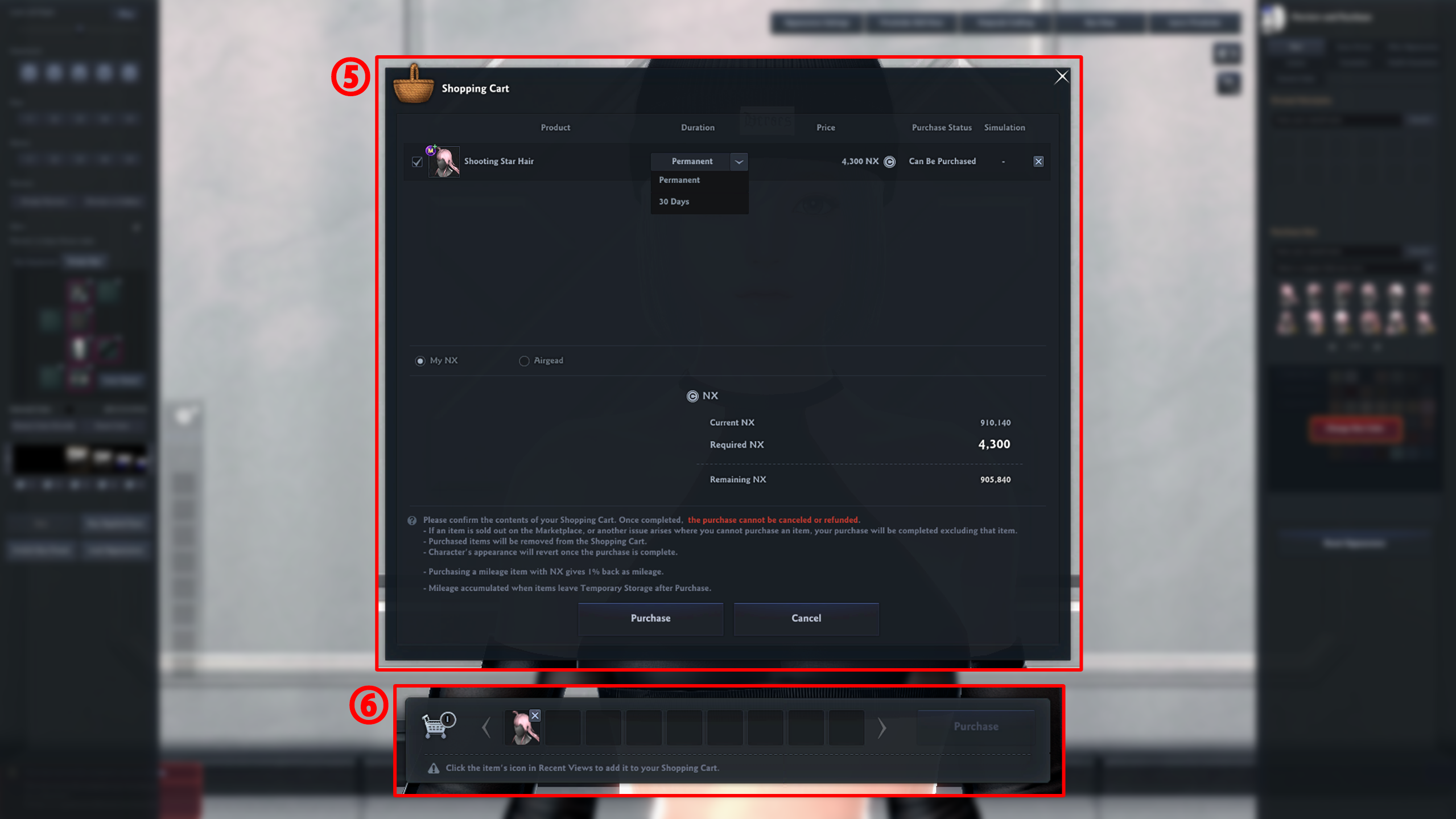
[5] Once you click an item in Recent Views, it will be moved to the Shopping Cart. Any items you character has tried on will be removed. You can no longer customize your item once it is in the Shopping Cart. If you would like to make any adjustments, please start over from stage [2] by deleting the item from the Shopping Cart. * If an item is in Recent Views, clicking Purchase on [5] will display the following message:
[6] If you own Permanent Coupons, etc., you can select them from this screen. Select the method of purchase and then click Purchase to complete the transaction. * Items purchased from the Wardrobe will not be sent to your Storage Chest. Instead, they will be sent to your NX Storage Chest immediately, and they cannot be returned or refunded.
Please ensure that details such as dye colors are correct, and specifically check if your coupons are applied before clicking the purchase button! |
| This guide reflects up-to-date information as of October 2022. |