■ Body Type Function
|
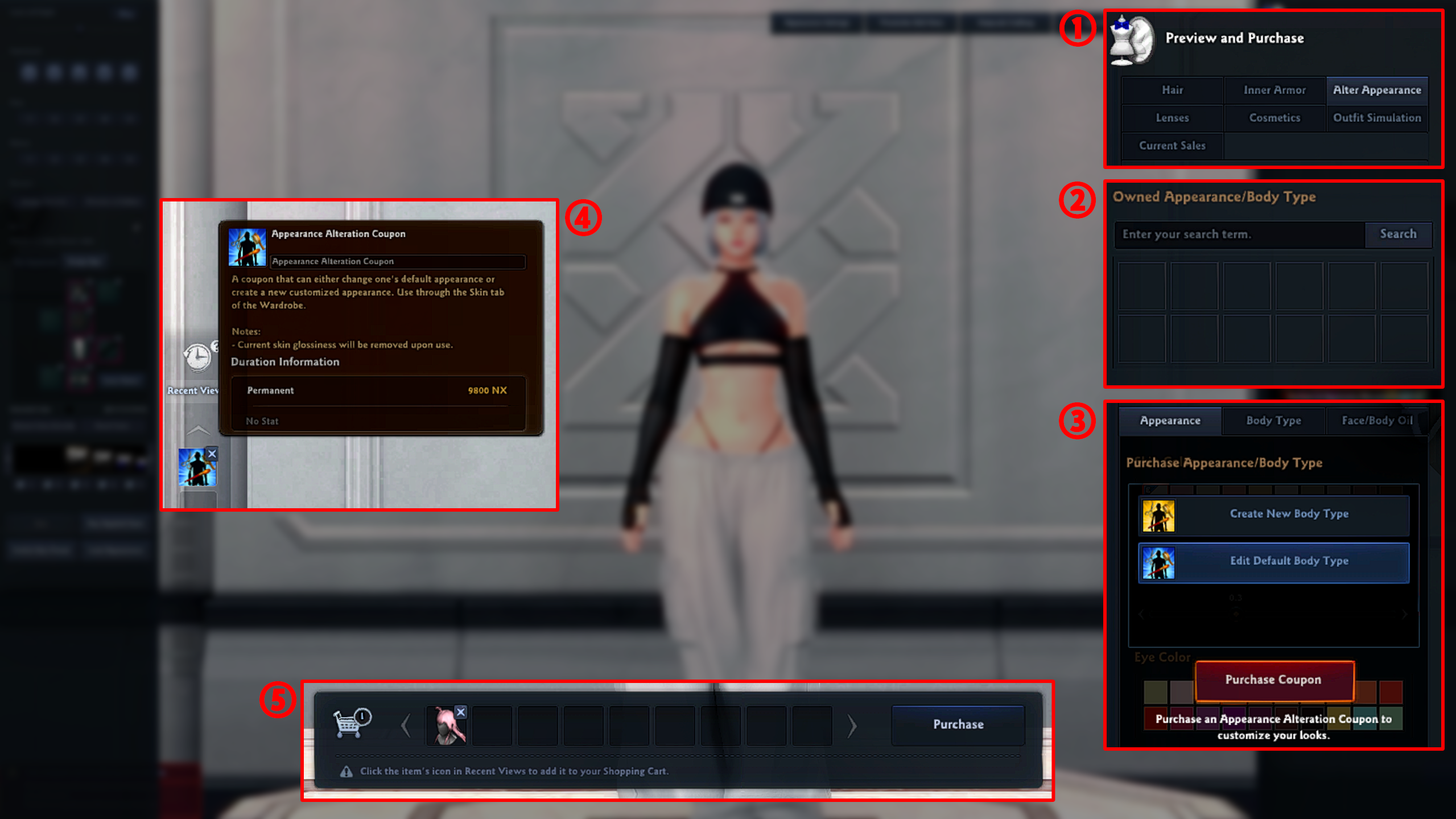
[1] Access the Appearance/Body Type/Face/Body Oil options from the Fitting Room area's Preview & Purchase section. Then, select Alter Appearance.
[2] Select from or search your currently inventory in Owned Appearance/Body Type.
[3] Change a character's appearance/body type by purchasing an Appearance Alteration Coupon, which can also change and preview the Face/Oil options. Value adjustments that previously required the Reilly's Face/Body Oil item can now be previewed even without it. If you do own the Reilly's Face/Body Oil item, then you can adjust the gloss levels from the relevant tab and use it there.
[4] Review the list of Appearance Alteration Coupons your character has tried on from Recent Views, and click the items you wish to move to the Shopping Cart.
[5] Review the items that you put in the Shopping Cart, and click [Purchase] to proceed with the purchase.
* Items purchased from the Wardrobe will not be sent to your Storage Chest. Instead, they will be sent to your NX Storage Chest immediately, and they cannot be returned or refunded. |
■ How to change or purchase Appearance & Body Type
|
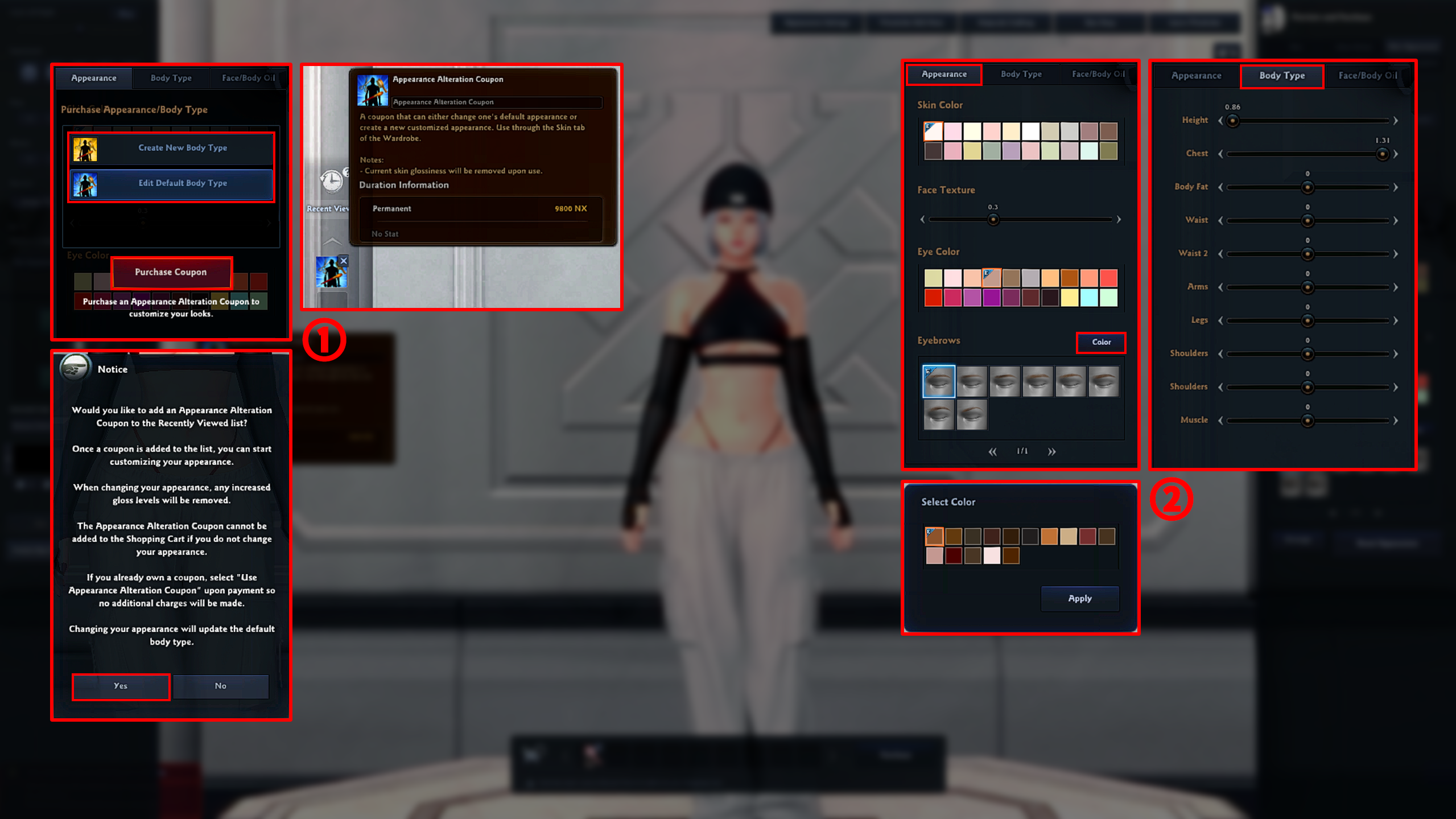
[1] Select "Create New Body Type" or "Edit Default Body Type," and purchase an Appearance Alteration Coupon to add it to your Recent Views list. Body Types already owned by the character will appear in a Body Type List that you can scroll through. Once you change an Appearance (after selecting an owned Body Type), the relevant body type will change, so be careful.
* You can't change your character's body type, or use Reilly's Face/Body Oil, while changing a the base Appearance/Body Type.
[2] Set the Appearance/Body Type of your choice from the Appearance/Body Type tab.
After achieving the desired Appearance/Body Type, click on the Appearance Alteration Coupon in your Recent Views, set the name of the Body Type, and add it to your Shopping Cart. * You can no longer customize your item once it is in the Shopping Cart. If you would like to make any adjustments, please click the item to send it it back to Recent Views.
After selecting the item you wish to purchase, and proceed with the transaction. If you wish to use an Appearance Alteration Coupon (Coupon), please select it to avoid spending money. |
■ How to use Reilly's Face/Body Oil
|
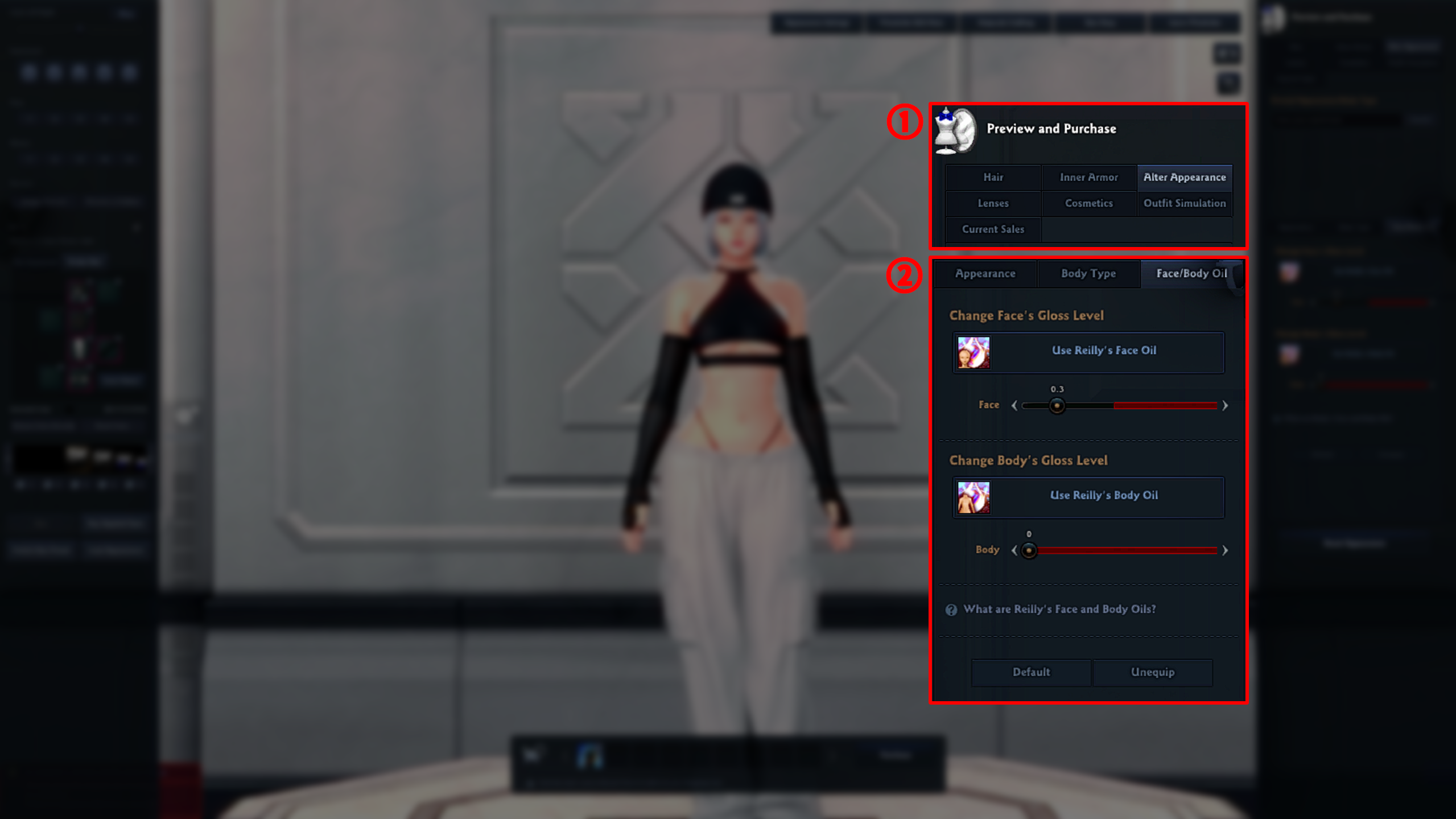
[1] Preview and use the Face/Body Oil item from the Fitting Room area's Preview & Purchase category, then select Alter Appearance. * The oil will be applied to your character's base appearance if an owned Appearance/Body Type isn't selected, so make sure to double-check.
[2] Click 'Use Face/Body Oil' after changing the gloss level to see an item selection list. * The initial gloss level will be reset upon using an Appearance Alteration Coupon. |
■ Notes on Creating/Changing Body Types
|
1. We cannot support reverting Appearance/Body Type changes if you accidentally change something you do not intend. Please be careful before finalizing your look & using coupons. 2. The Premium Appearance Alteration Coupon earned through certain events can change the Body Type information for the default body or a created body.
3. Previously saved Body Type information on a created body can still be changed. However, the change will require another Appearance Alteration Coupon. 4. See created Body Type items from Storage Chest (Shortcut Key B) > NX Storage Chest, and equip them to the Body Type slot. |
| This guide reflects up-to-date information as of October 2022. |